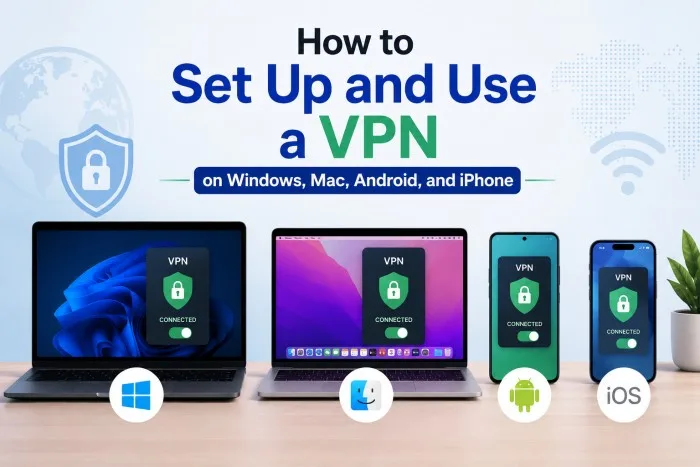
How to Set Up and Use a VPN on Windows, Mac, Android, and iPhone

In today’s digital world, using a VPN is one of the smartest ways to protect your privacy, secure your data, and access content freely. Whether you’re working from a café, traveling abroad, or simply browsing at home, a reliable VPN encrypts your connection and hides your real IP address. Setting one up is now easier than ever across all major devices. Here’s a straightforward guide to help you get started quickly and use it effectively.
Setting Up a VPN on Windows
Begin by downloading the official app from your chosen VPN provider’s website. Once installed, open the program and sign in with your account details. Most apps feature a large “Quick Connect” button that automatically connects you to the fastest available server. For better control, you can manually select a country or city from the server list.
Enable the Kill Switch in the settings menu — this important feature immediately cuts your internet connection if the VPN drops, preventing accidental data leaks. The entire process usually takes under two minutes, and the app runs quietly in the background once configured.
Setting Up a VPN on Mac
On macOS, download the application from the provider’s site and install it. After launching the app and signing in, your Mac will ask for permission to add a VPN configuration. Approve it, and you’re ready to connect.
The interface is clean and intuitive. Use Quick Connect for instant protection or pick a specific location for streaming or lower latency. Many users appreciate the option to set the VPN to activate automatically when joining unfamiliar Wi-Fi networks.
Setting Up a VPN on Android
For Android phones and tablets, download the app directly from the Google Play Store. Open it, log in, and grant the necessary VPN permissions. The setup is fast and user-friendly.
Most Android VPN apps include handy extras such as a widget for your home screen and the ability to create exceptions for certain apps. You can also turn on “Always-on VPN” to ensure protection is active at all times, even after restarting your device.
Setting Up a VPN on iPhone
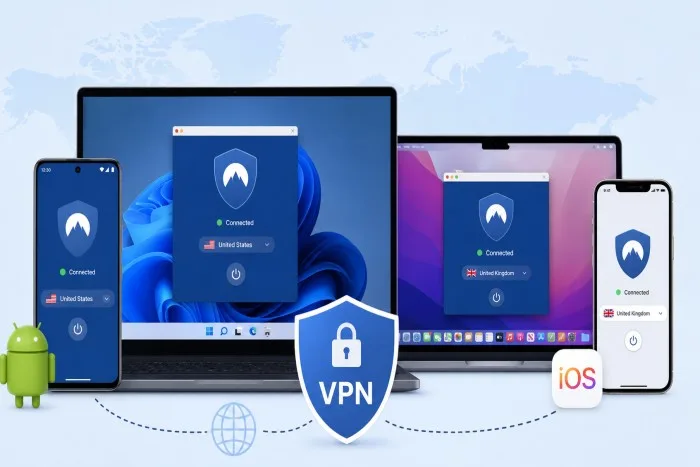
On iOS, head to the App Store and download the official app. After signing in, iOS will prompt you to allow a VPN configuration profile — accept it, and the app is ready. Connecting is as simple as tapping a large button. The iOS version is designed for simplicity while still offering useful features like auto-connect on public networks and detailed connection logs. It works smoothly across iPhones and iPads.
Proton VPN is a strong option known for its clean apps, strong privacy protections, and reliable performance across all these platforms.
Making the Most of Your VPN Every Day
Once installed, develop good habits. Connect whenever you join public Wi-Fi, stream content from other regions, or handle sensitive information. Use the Quick Connect feature for convenience, but learn to select specific servers when you need the best speed for gaming or streaming.
Most quality VPNs also offer split tunneling, allowing you to route only certain apps through the VPN while others use your regular connection. This is especially useful for banking apps or local services.
Final Thoughts
Setting up a VPN on Windows, Mac, Android, or iPhone is quick, simple, and delivers immediate benefits for your online safety and freedom. In just a few minutes, you can enjoy stronger privacy, better security on public networks, and access to global content.
Make it part of your daily routine. The small effort of installing and using a VPN pays off significantly in peace of mind and digital freedom. Whether you’re protecting personal data or simply enjoying a more open internet, a good VPN is one of the best tools you can add to your digital life in 2026.